New to PokeDrops? Follow this walkthrough to find your favorite stores and set up a map that works for you.
Get started ↓13 steps · iPhone app · Screenshots included
01
Find & follow stores
Step 01 / 13
Start with the Explore map
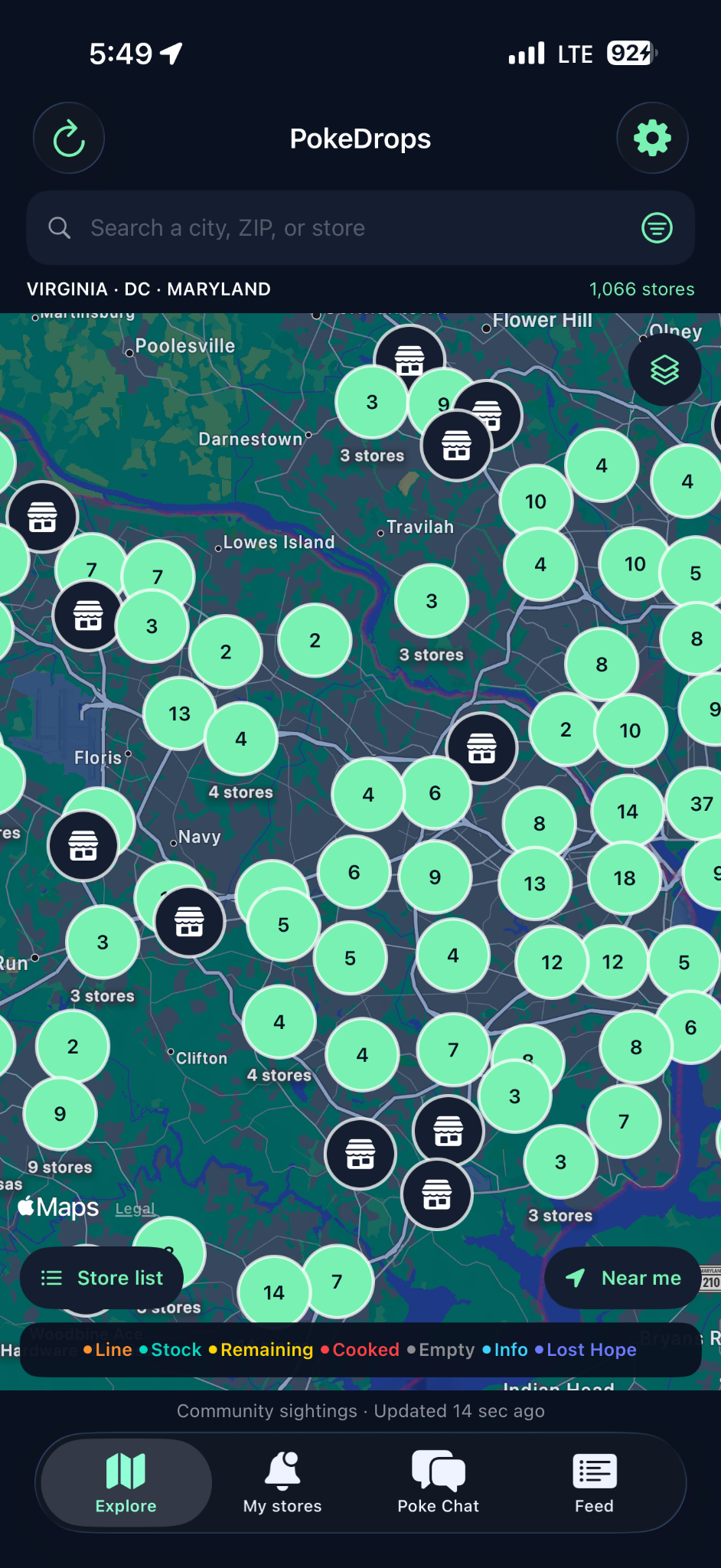
This is what PokeDrops looks like when you first launch the app. The Explore map is your starting point for finding stores.
Store icons mark individual locations. Numbered circles group nearby stores together.
Next, find the stores you want to favorite or follow.
SCREEN 01 · TAP TO ENLARGE
Step 02 / 13
Two ways to find stores
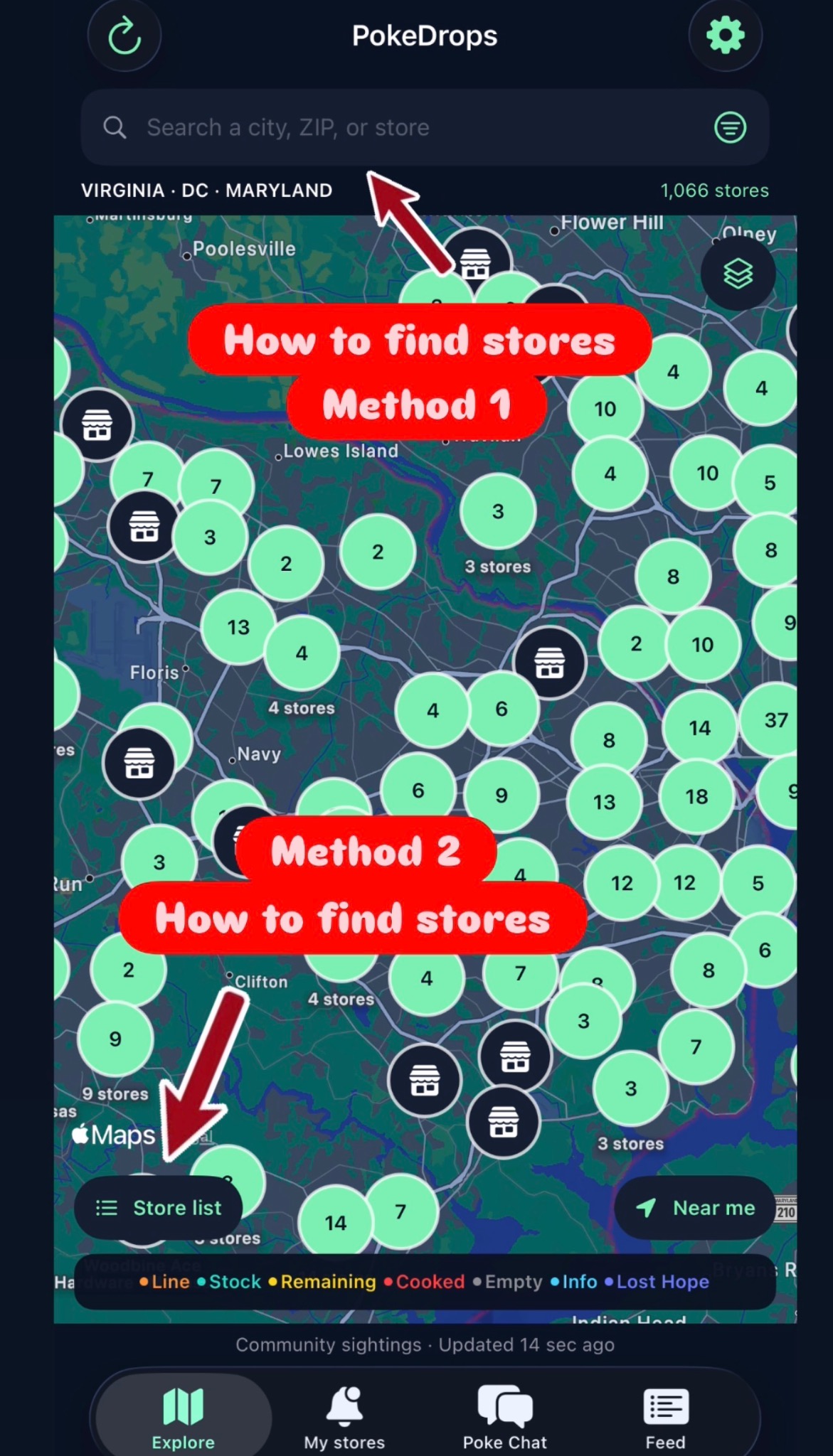
You can find stores directly on the map or browse a list of locations.
Map search: tap the search bar at the top.
Store list: tap the button near the bottom-left corner of the map.
Use either method, then open a store to follow it.
SCREEN 02 · TAP TO ENLARGE
Step 03 / 13
Search from the map
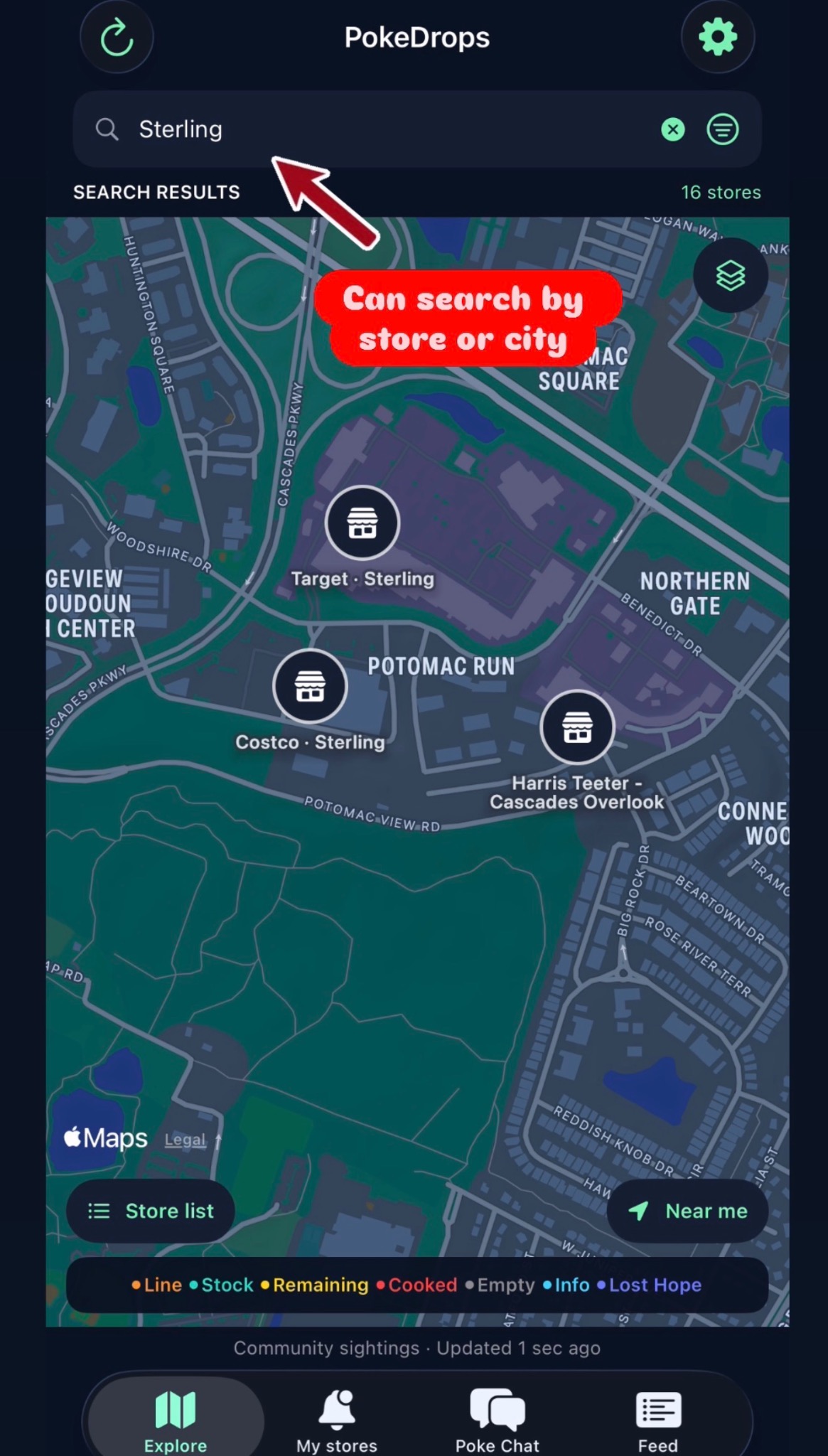
Tap Search a city, ZIP, or store at the top of the map and enter your search.
For example, enter Sterling to find stores in that area. You can also search by store name.
Tap a store marker to open that location.
SCREEN 03 · TAP TO ENLARGE
Step 04 / 13
Search using Store List
Recommended method
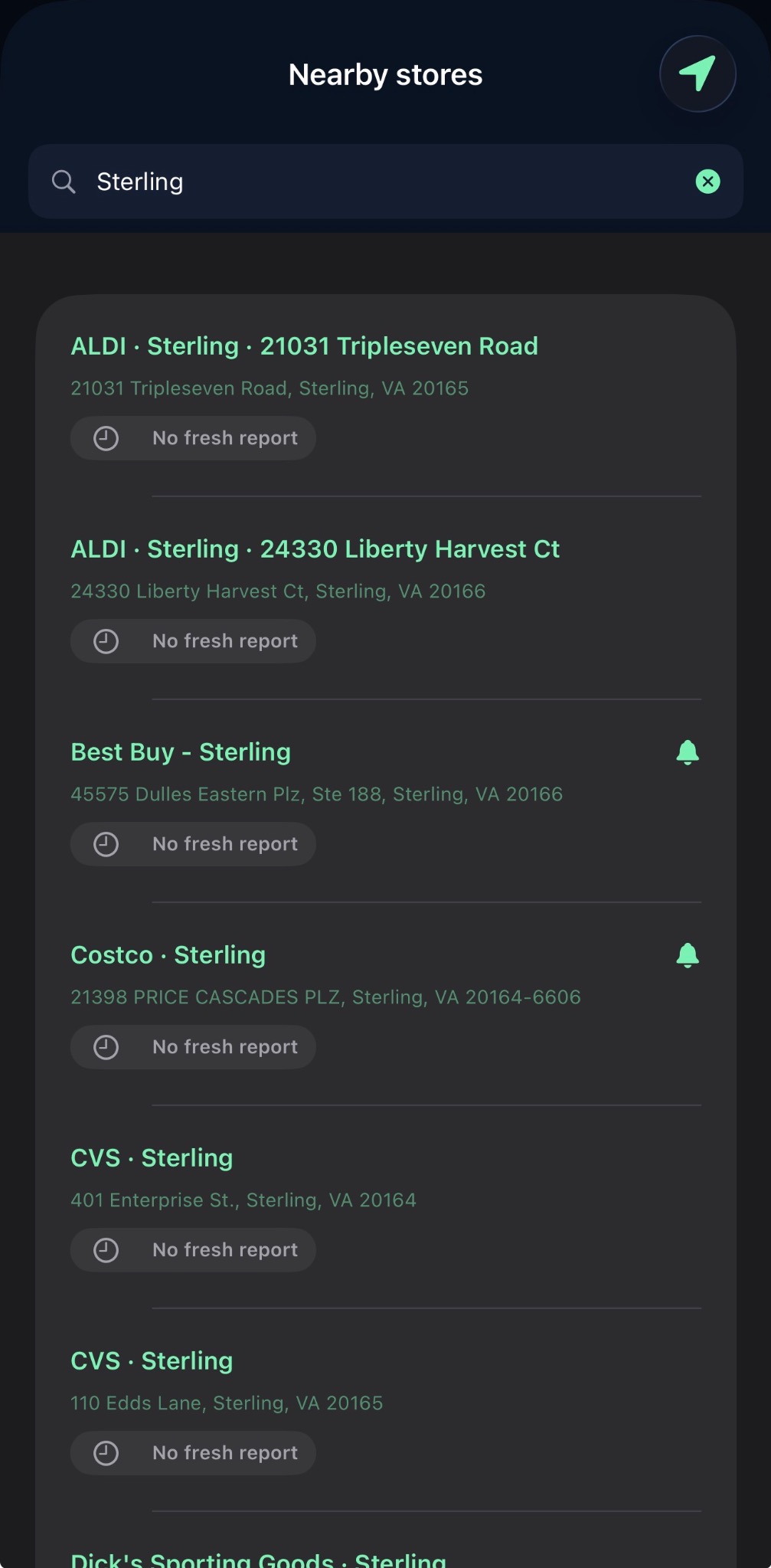
From the map, tap Store list to open Nearby stores.
Use the search bar to narrow the list. Check the store name and address, then tap the location you want.
Our preferred way to search. The list makes it easy to compare addresses and choose the right store.
SCREEN 04 · TAP TO ENLARGE
Step 05 / 13
Follow your favorite stores
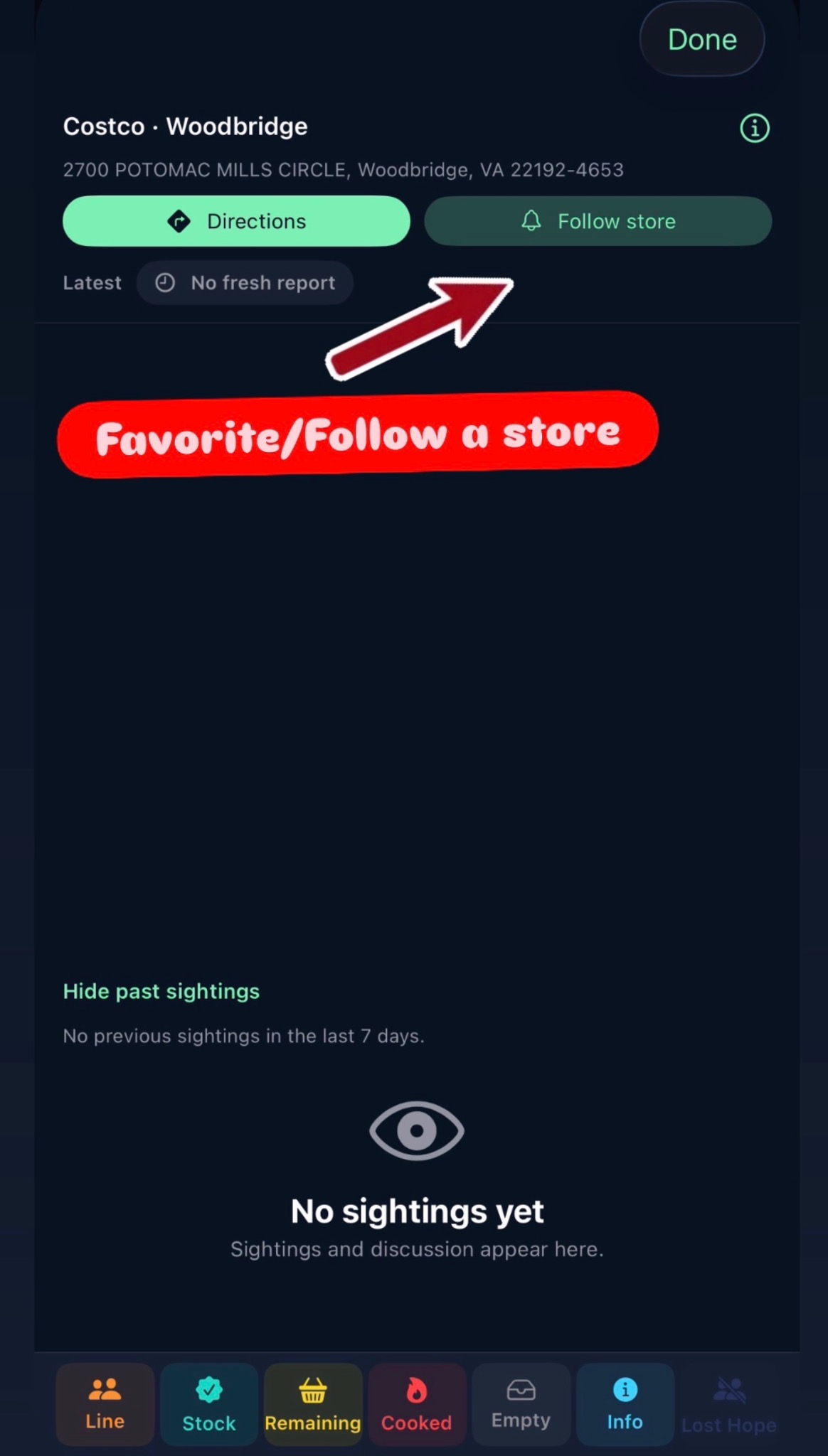
Open a store and tap Follow store beside the bell icon.
This adds the location to your followed stores. Repeat for each store you want to keep track of.
Use the My stores tab to view the stores you follow.
Follow stores first. The next steps will filter the map to show your favorites.
SCREEN 05 · TAP TO ENLARGE
02
Filter your map
Step 06 / 13
Open the map filters
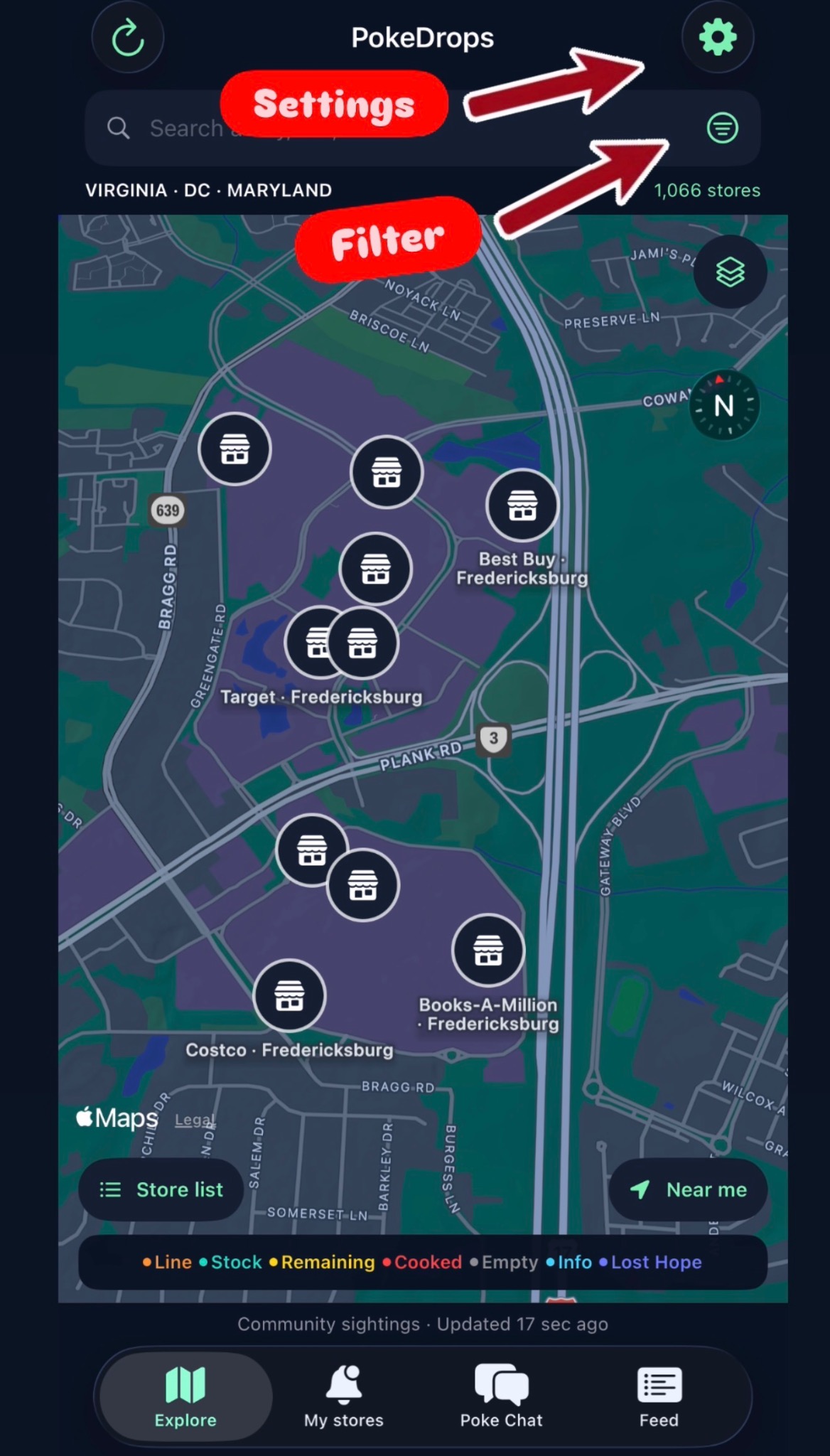
Return to the Explore map and tap the Filter icon at the right end of the search bar.
The screenshot labels both controls: the gear opens Settings, and the circular icon with horizontal lines opens Filter.
For this step, choose Filter.
SCREEN 06 · TAP TO ENLARGE
Step 07 / 13
Show only your favorites
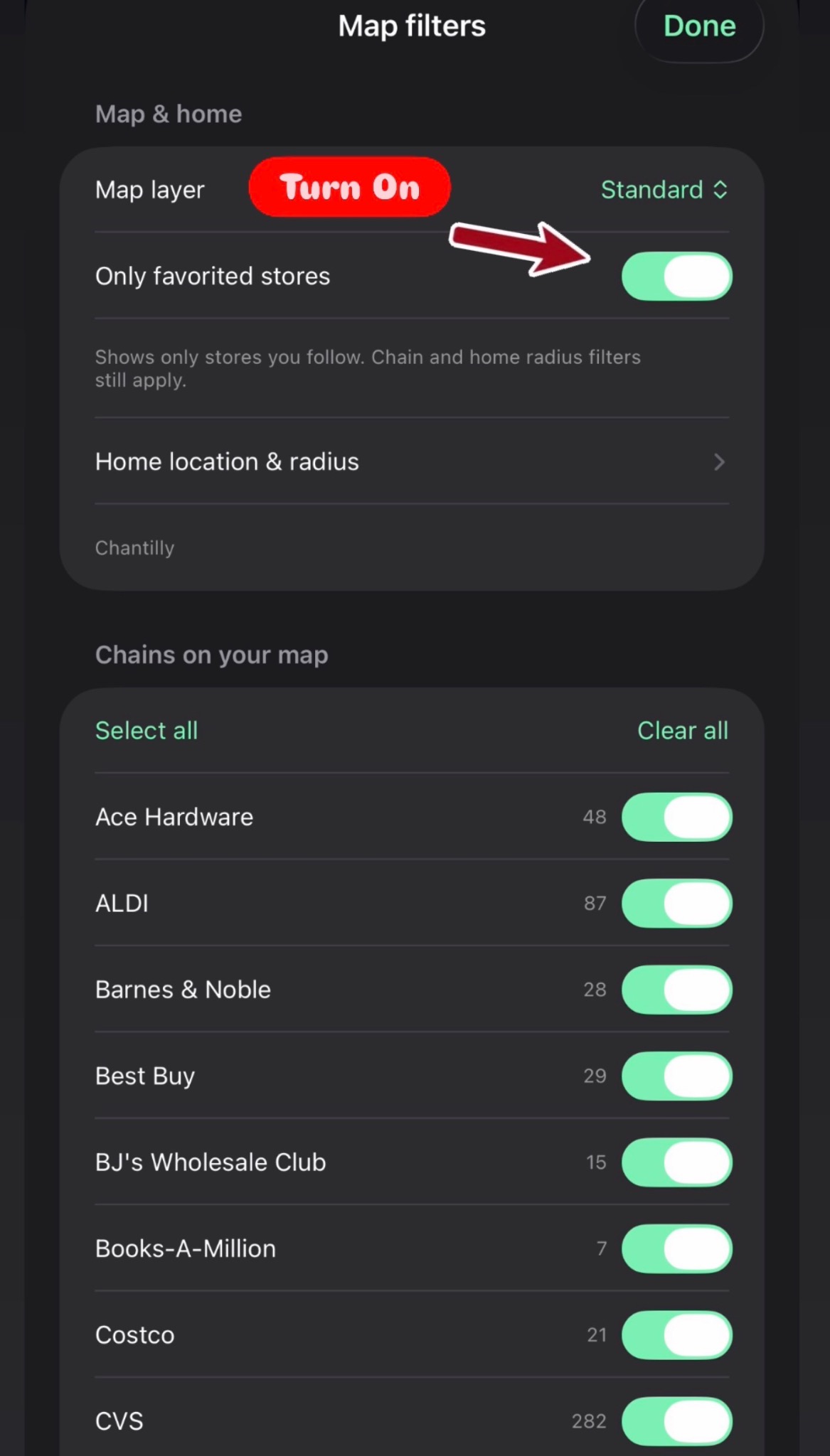
Turn on Only favorited stores. The switch turns green when enabled.
Your map will show only stores you follow, subject to your other filters.
Filters work together. Chain selections and home radius settings still apply. If a favorite is missing, check those settings too.
SCREEN 07 · TAP TO ENLARGE
03
Set your home area
Step 08 / 13
Open Home Location & Radius
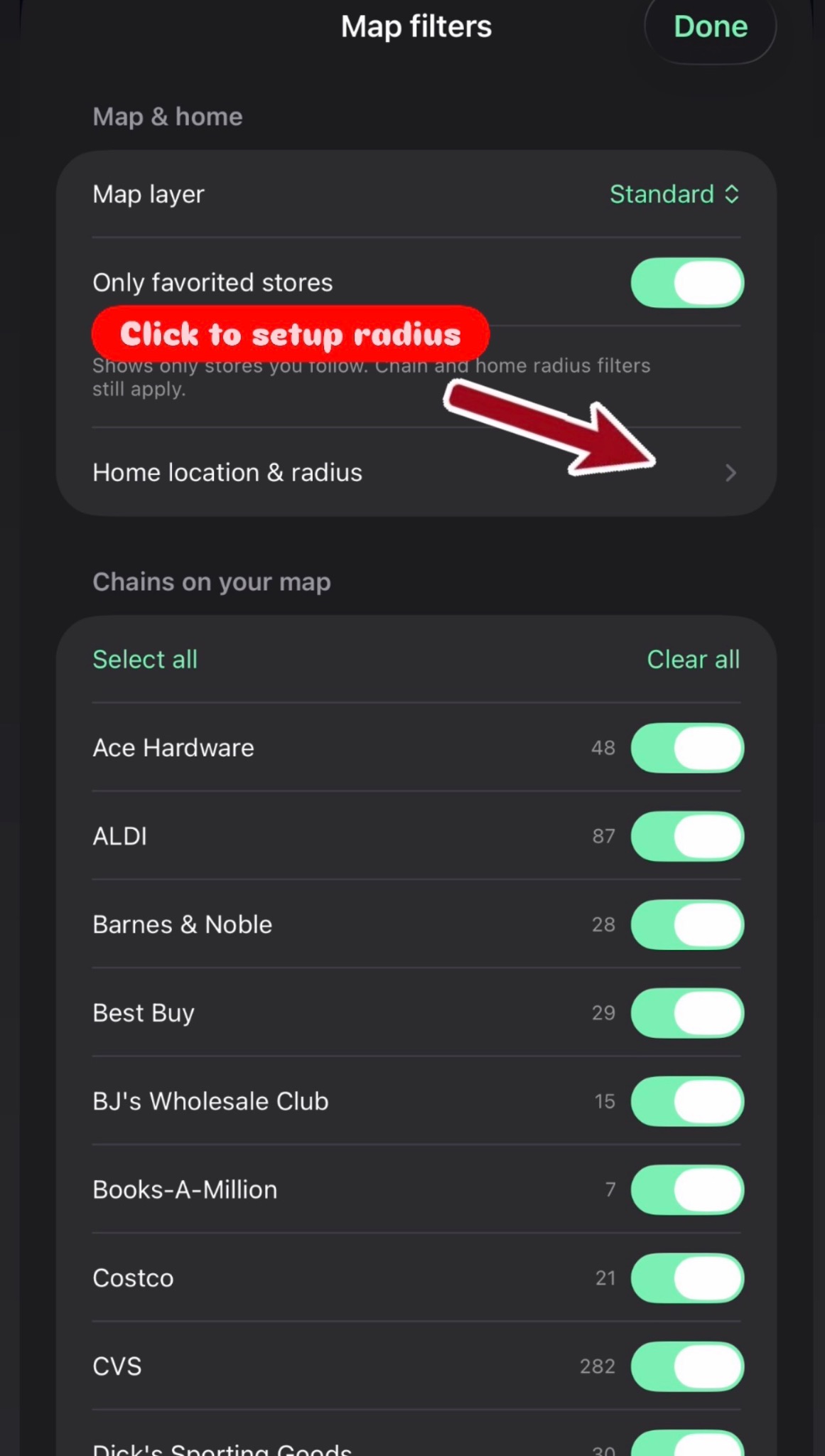
In Map filters, tap Home location & radius.
This is where you choose the home area and browsing distance you want to use.
SCREEN 08 · TAP TO ENLARGE
Step 09 / 13
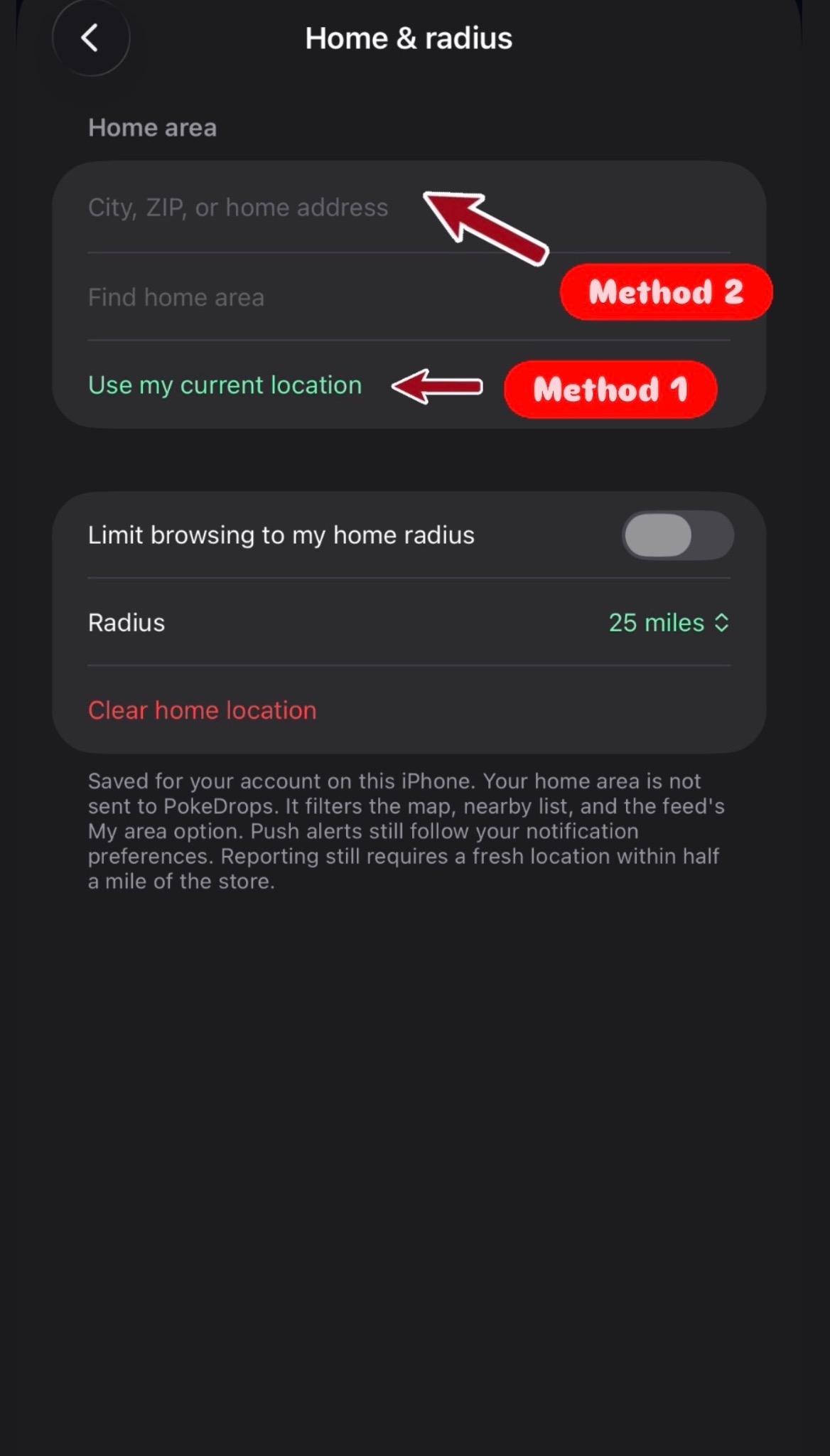
Choose how to set your home area
There are two ways to set your home area:
Use my current location: choose this to use where you are now.
Enter a location: tap City, ZIP, or home address to type an area manually.
The next two steps show the address method. If you use your current location, continue to the radius settings in step 11.
SCREEN 09 · TAP TO ENLARGE
Step 10 / 13
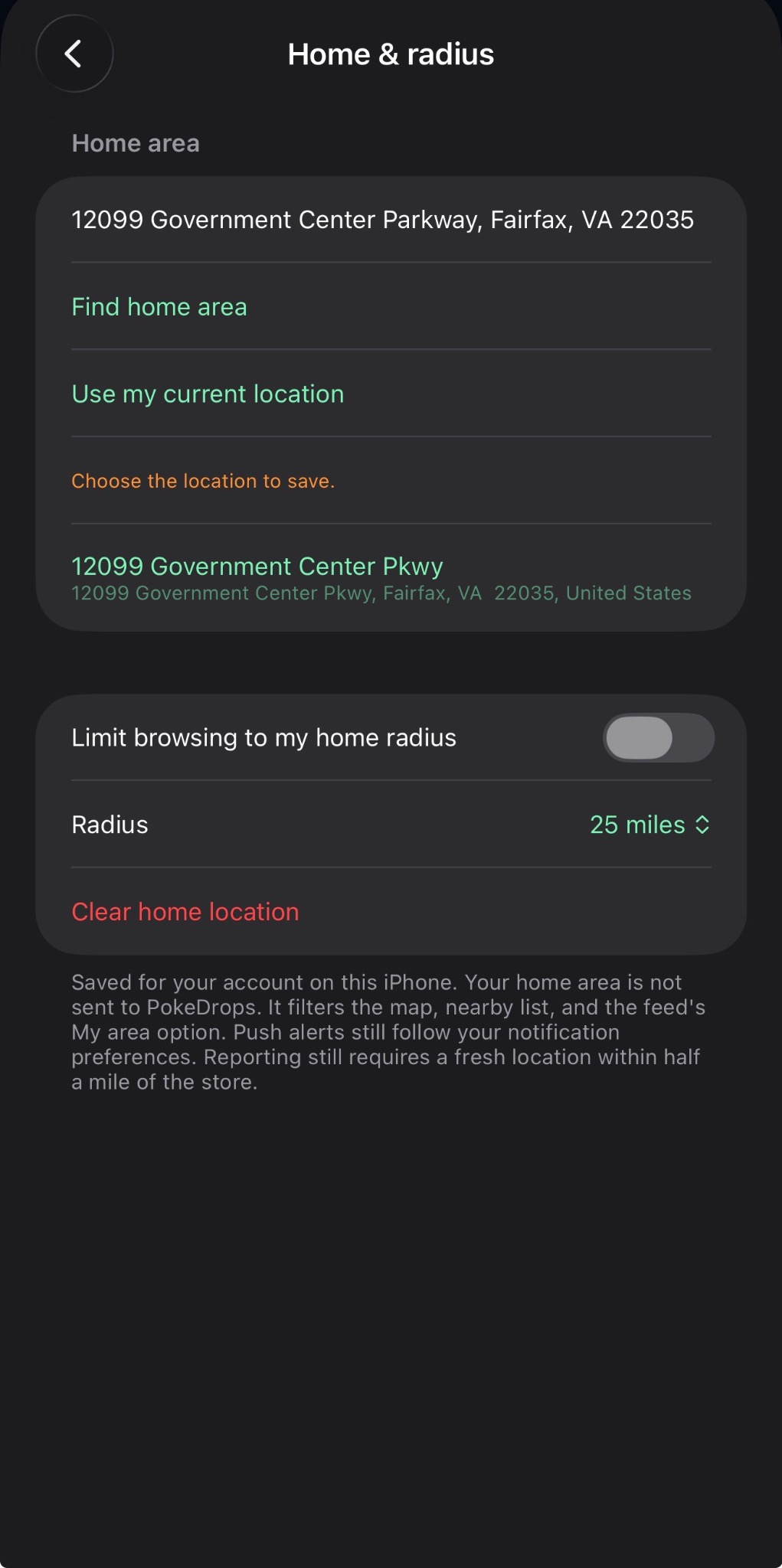
Enter an address
Tap the home area field and enter the address you want to use. Include the city, state, and ZIP code to help identify the right location.
You can also enter a city or ZIP code if you prefer a broader area.
Use your own location. The address in the screenshot is an example.
SCREEN 10 · TAP TO ENLARGE
Step 11 / 13
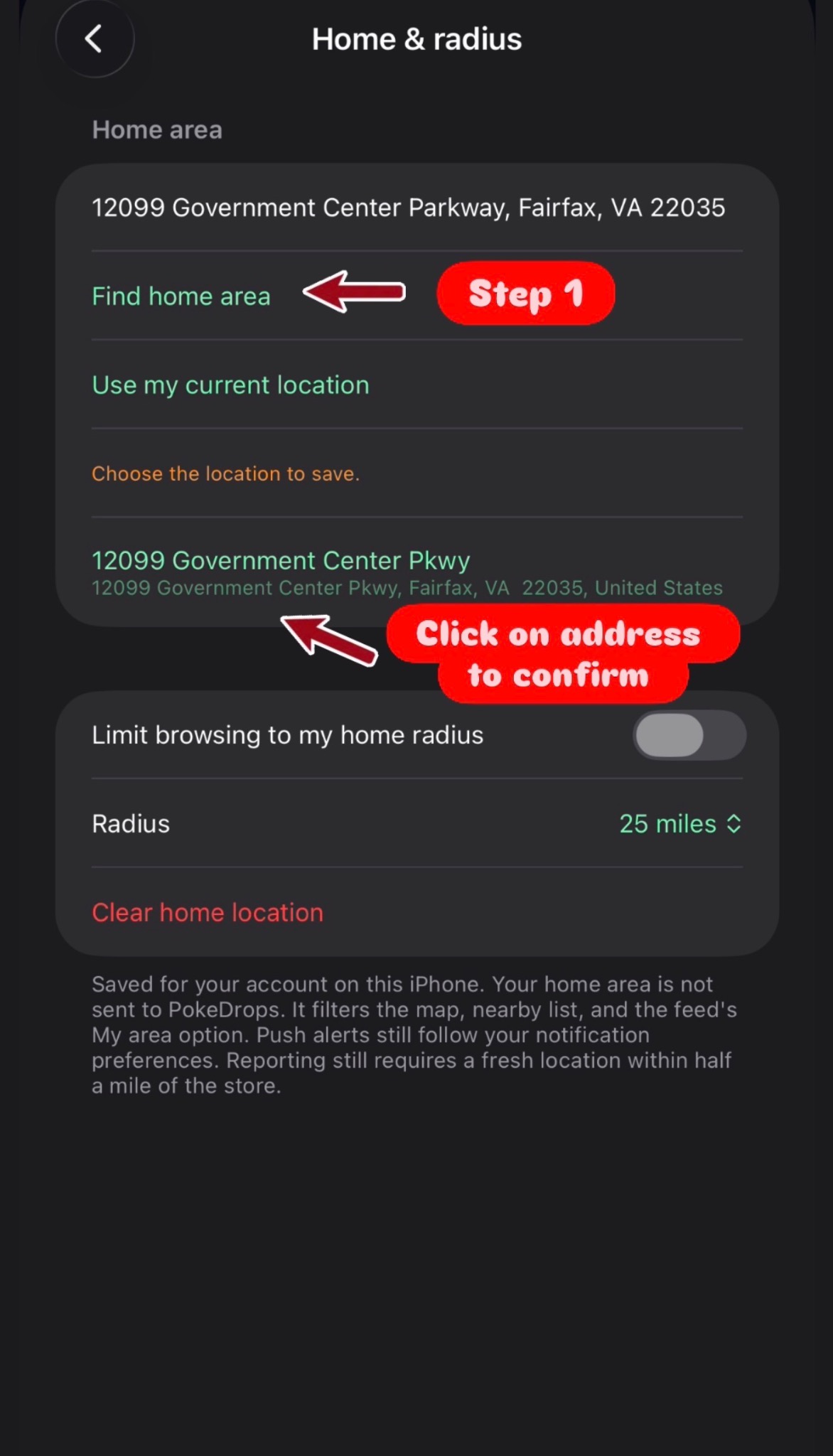
Find, confirm, and set your radius
Tap Find home area.
Review the results, then tap the matching address under Choose the location to save to confirm it.
To limit browsing to this area, turn on Limit browsing to my home radius and choose your preferred distance under Radius.
Make sure you confirm. Typing an address alone does not complete the selection. The radius limit is off in this example screenshot.
SCREEN 11 · TAP TO ENLARGE
04
Choose your chains
Step 12 / 13
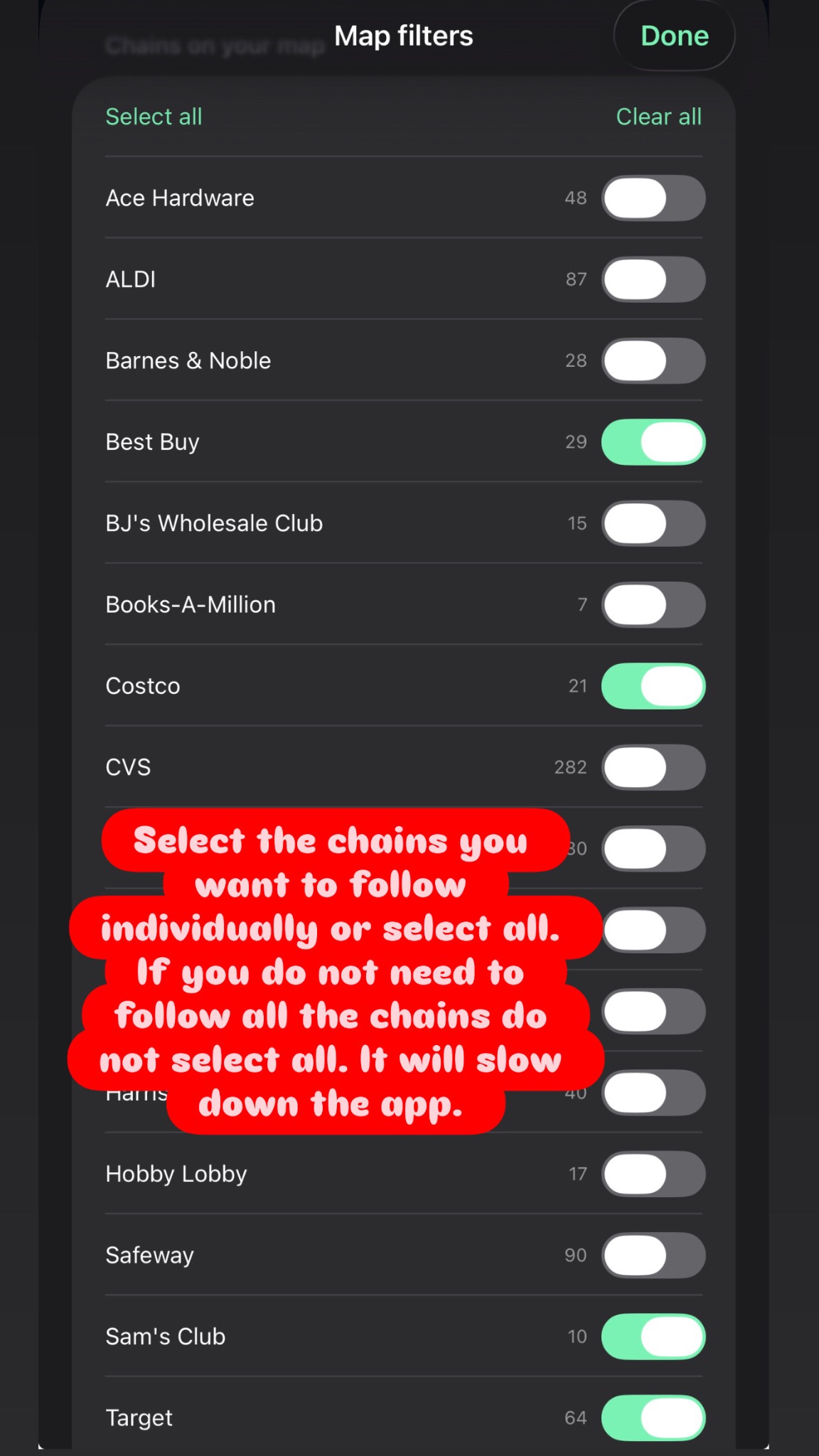
Choose your store chains
Go back to Map filters and scroll to Chains on your map.
Turn on the chains you want to see, or tap Select all to include every chain. Tap Done when you finish.
For a more focused map, select only the chains you shop at.
Chains and favorites are separate. Chain switches filter the map. To favorite a specific location, open its page and tap Follow store.
SCREEN 12 · TAP TO ENLARGE
Step 13 / 13
Check your personalized map
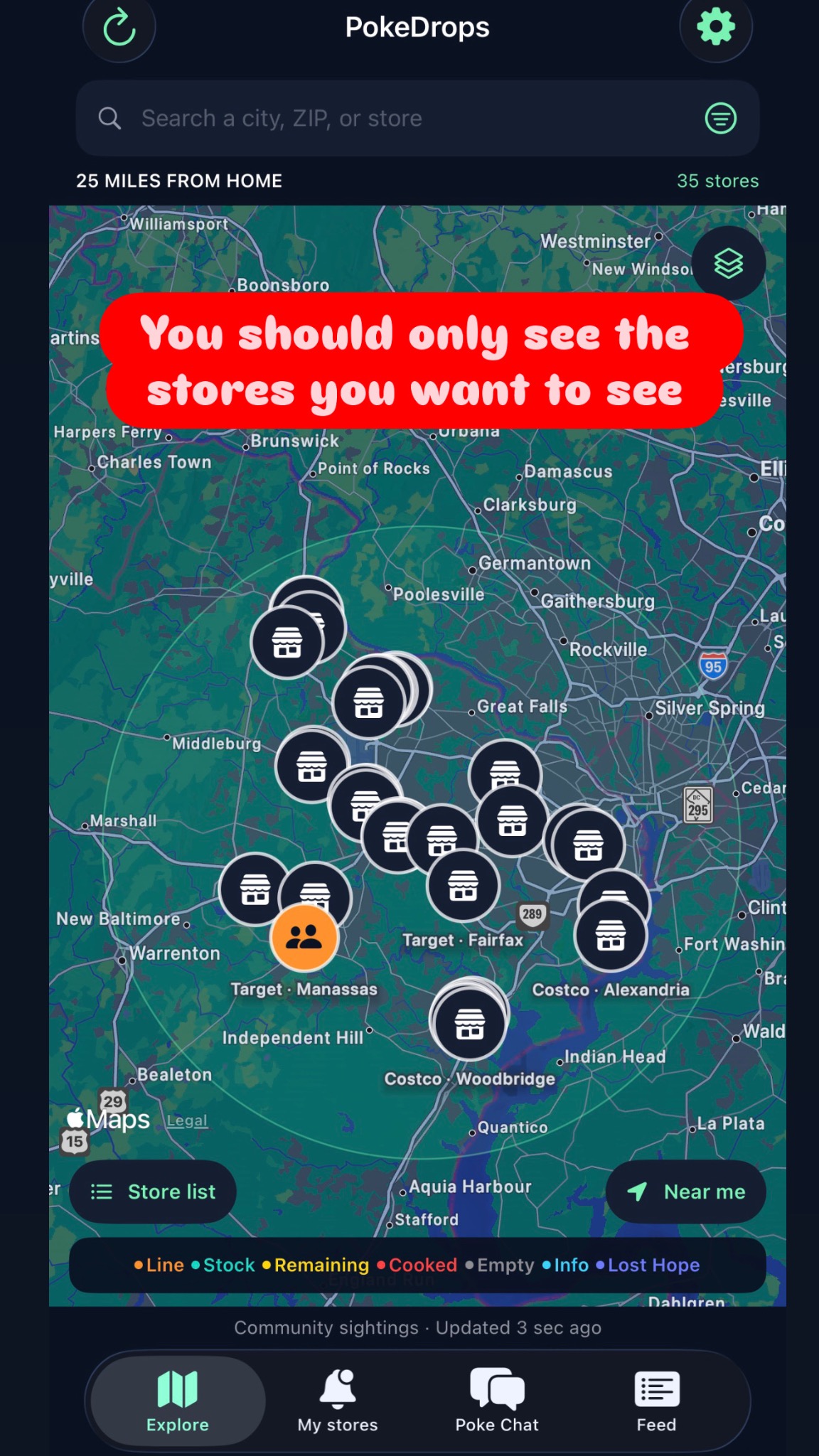
Tap Done to return to the Explore map. You should now see only the stores that match your selected filters.
With Only favorited stores enabled, the map shows the stores you follow that also match your chain selections and home radius, if the radius limit is on.
The screenshot shows an example with 25 miles from home and 35 stores. Your radius and store count will depend on your settings.
Your map is ready. You can reopen Filter anytime to adjust which stores you see.
SCREEN 13 · TAP TO ENLARGE
You're ready to explore.
Your favorite stores, home area, and chain selections help you focus on the locations you care about.
Why can't I see a store I followed?
Check that its chain is enabled under Chains on your map. If you limited browsing to your home radius, the store also needs to fall within that area. Clear any search text if it is narrowing your results.
How do I find more stores to follow?
Turn off Only favorited stores while you search for more locations. Open each store and tap Follow store, then turn the favorites filter back on when you finish.